Bring your financial reports into Excel

The Clarity Ledger Excel add-in puts reports from your connected Xero, QuickBooks Online and FreeAgent companies into your workbook. Insert a whole statement or pull one balance into a forecast.

You need a Clarity Ledger reporting subscription or eligible trial. View reporting plans

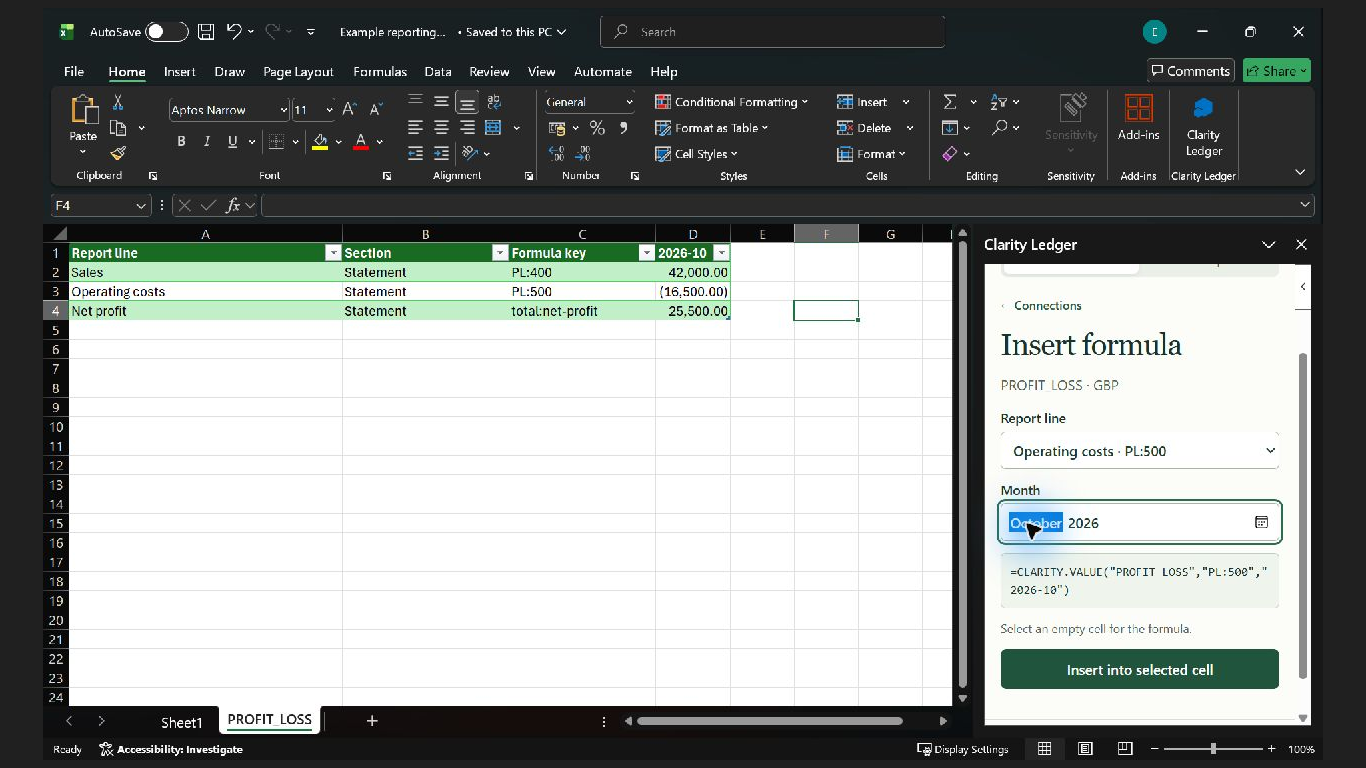
Excel profit and loss table with sales, operating costs and net profit. The Clarity Ledger pane shows the operating costs formula for October.
Fictional figures in Excel. Select the image to see the report table and formula picker at full size.

Build the workbook you use at month end

Insert a statement as an Excel table

Choose a profit and loss, balance sheet or trial balance. Use standard accounts to bring selected companies together in GBP, or source accounts to see one company in its original account structure. Preview the reporting period and warnings before inserting the table.

For two or more companies in Standard view, choose After eliminations to show combined balances, reviewed eliminations and adjusted totals for each period. See which intercompany balances qualify.

Link an individual figure to a cell

Select a report line and month in the formula picker. For example, name a profit and loss connection GroupPL and put a reporting date in B2. This formula returns net profit for that month.

=CLARITY.VALUE("GroupPL","total:net-profit",B$2)

Copy the formula across columns to compare months. A connection set to After eliminations returns the adjusted balance.

Connect, refresh and share

Start with a company that has synced financial reports in Clarity Ledger. See the connection requirements for Xero, QuickBooks Online or FreeAgent.

Open Clarity Ledger on the Excel Home ribbon and sign in. Select your portfolio, companies and reporting period. When you need newer figures, refresh a connection or the whole workbook. The add-in reads the latest reports synced to Clarity Ledger.

Anyone who receives a saved workbook can see the figures it contains. To refresh them, each person needs the add-in and their own reporting access to the selected companies.

Follow the installation, formula and troubleshooting guide